How to Connect Your Sungrow Logger to the Novasense Portal via SFTP
Configuring the Sungrow Logger
To configure FTP push on a Sungrow Data Logger (COM100/Logger1000/3000/4000), log into the local web interface (default IP: 12.12.12.12 or 11.11.11.1 via Wi-Fi), go to System > Transfer Configuration, enable Third-party Portal (FTP/SFTP), and enter the server details, username, password, and port in the advanced settings. Ensure the "FTP path" is set, often as / or a specific subdirectory, to upload data to a third-party, such as Novasense
Steps to configure Sungrow SFTP push
-
Access Logger Interface: Log into the logger using its IP address (typically 12.12.12.12 for Ethernet or 11.11.11.1 for Wi-Fi) with admin credentials.
-
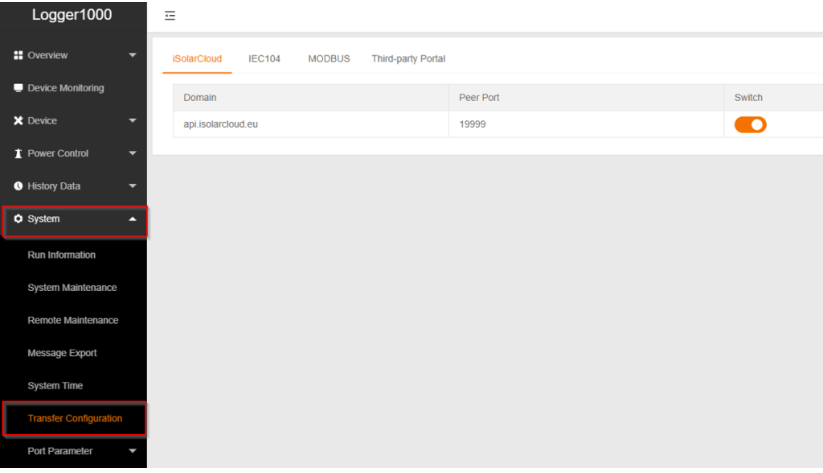
Navigate to Transfer Settings: Go to System > Transfer Configuration or Forwarding Configuration.
-
Click on "Third-party Portal" and activate the FTP/SFTP switch. Then click on the settings icon "Advanced Settings".

-
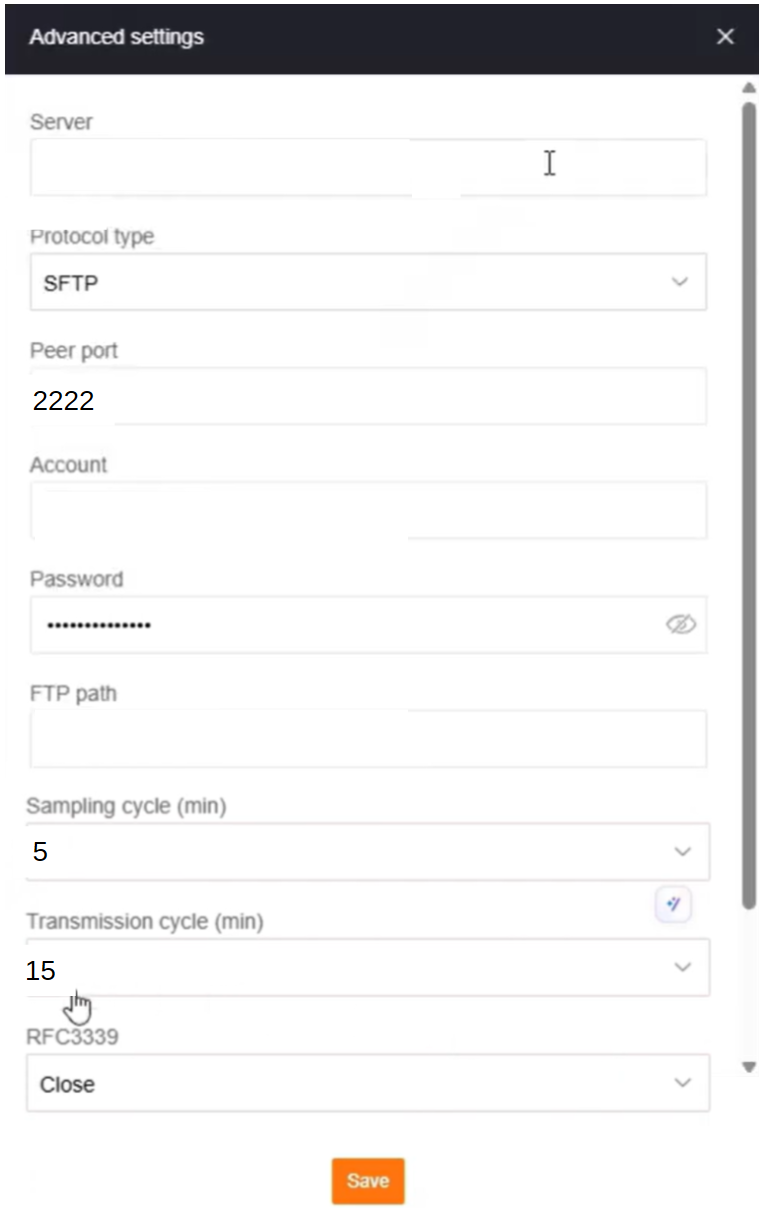
Enter the following values in the “Advanced Settings” input field (see figure).
- FTP Server: Provided by the Novasense Support
- Protocol type: SFTP
- Port: Provided by the Novasense Support
- FTP Username: Provided by the Novasense Support
- FTP Password: Provided by the Novasense Support
- FTP Path: Provided by the Novasense Support
- Configure Cycle: Set Sampling to 5 minutes and Transfer cycles to 15 minutes
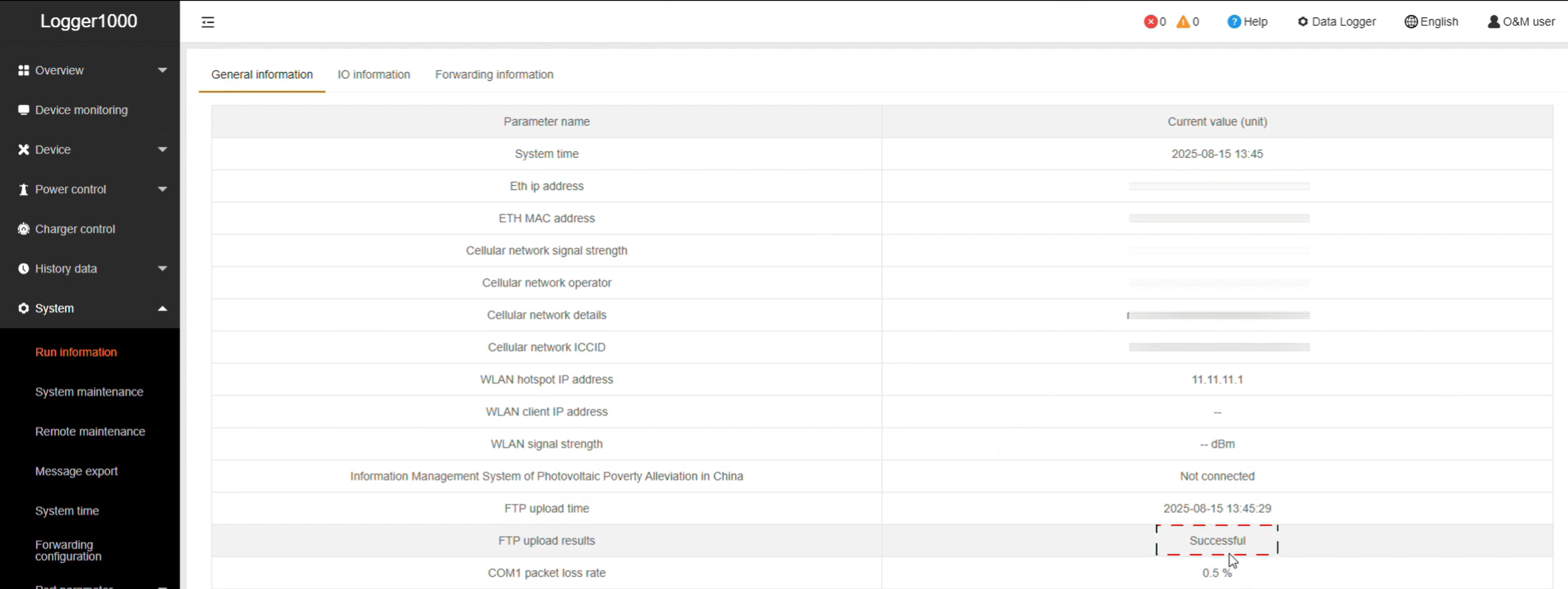
- Verify Status: Check "Run Information" to confirm successful uploads.
Correct date and time settings on your loggers are very important. Please ensure that you set the correct time zone, including any applicable daylight saving times for your region. Ideally, synchronize the date and time from a time server (NTP) if supported by your device.